Brands are used to customer reviews and creators as the social proof on their sites.
Verified by OuterSignal adds another kind. It highlights notable groups among your buyers, groups with social capital or cachet, on your product pages and landing pages. A visitor either sees themselves in a group or aspires to belong to it, so the line resonates and gives them a reason to buy.
OuterSignal counts every line from your own customer data. You decide which lines and employer logos your visitors see, and how the line looks.
Verified by OuterSignal shows site visitors the groups who buy from you
Verified by OuterSignal is a badge on your product pages and landing pages. Each line starts with "Used by", gives a count, and names a group of your buyers.
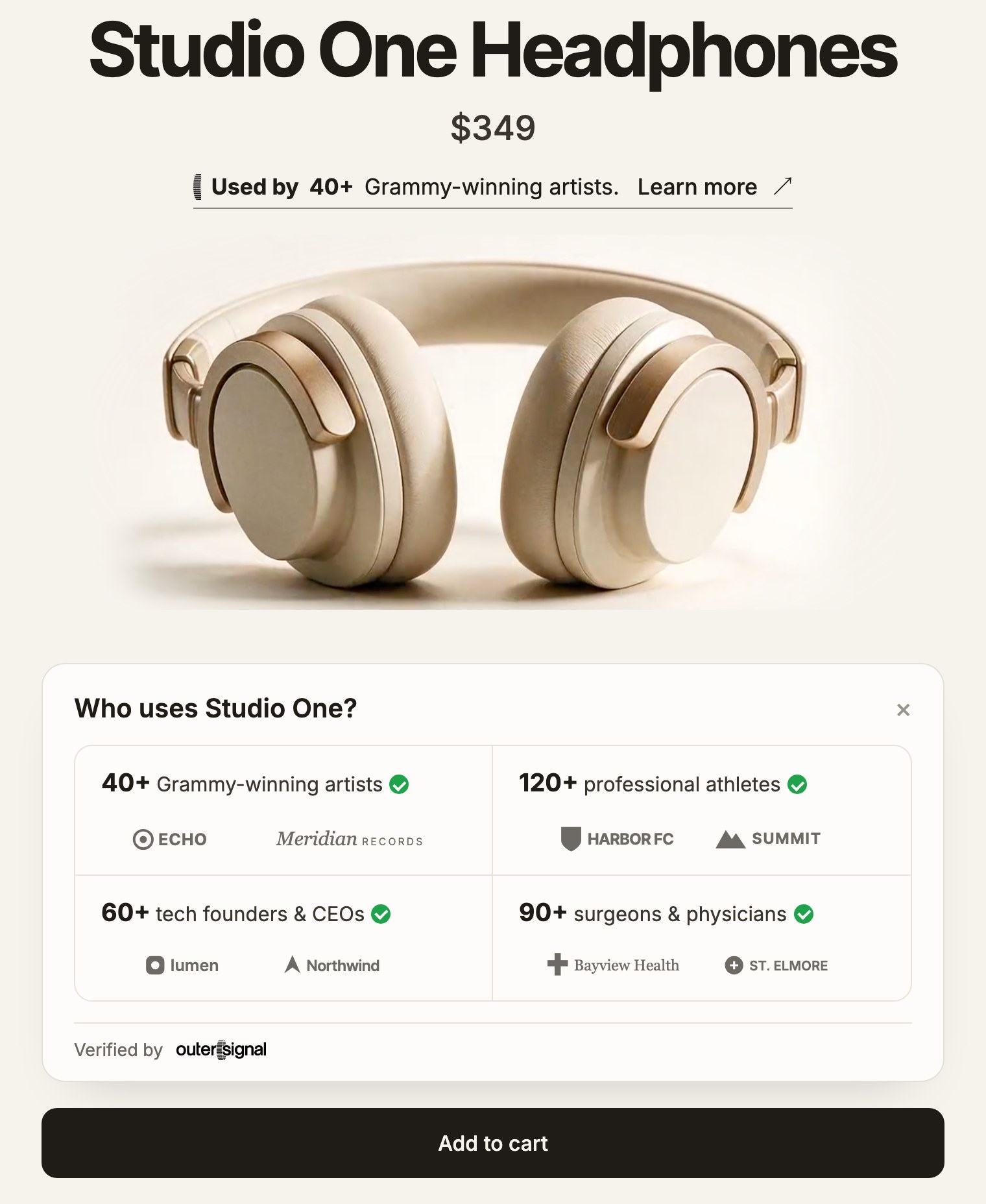
A click on the line opens a "Who uses <your brand>?" card. The card lists every group with its count and employer logos, verified by OuterSignal.
No buyer is named, on the line or on the card. The badge shows groups, counts, and employer logos only.
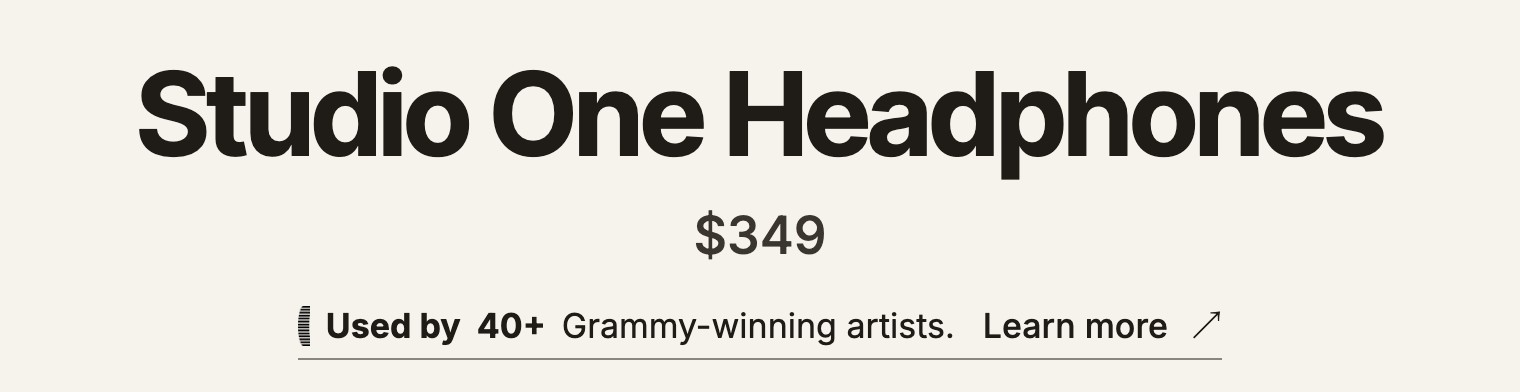
Every group of your buyers in one card
When a visitor clicks the line, the "Who uses <your brand>?" card opens below it. Each group shows its count as N+, a green check, and the employers its buyers work for, as logos.
A visitor sees the notable groups among your buyers, and either recognizes themselves in a group or aspires to belong to it.
How to turn on Verified by OuterSignal on Shopify
1. Open Settings > Badge. In OuterSignal, go to Settings > Badge.
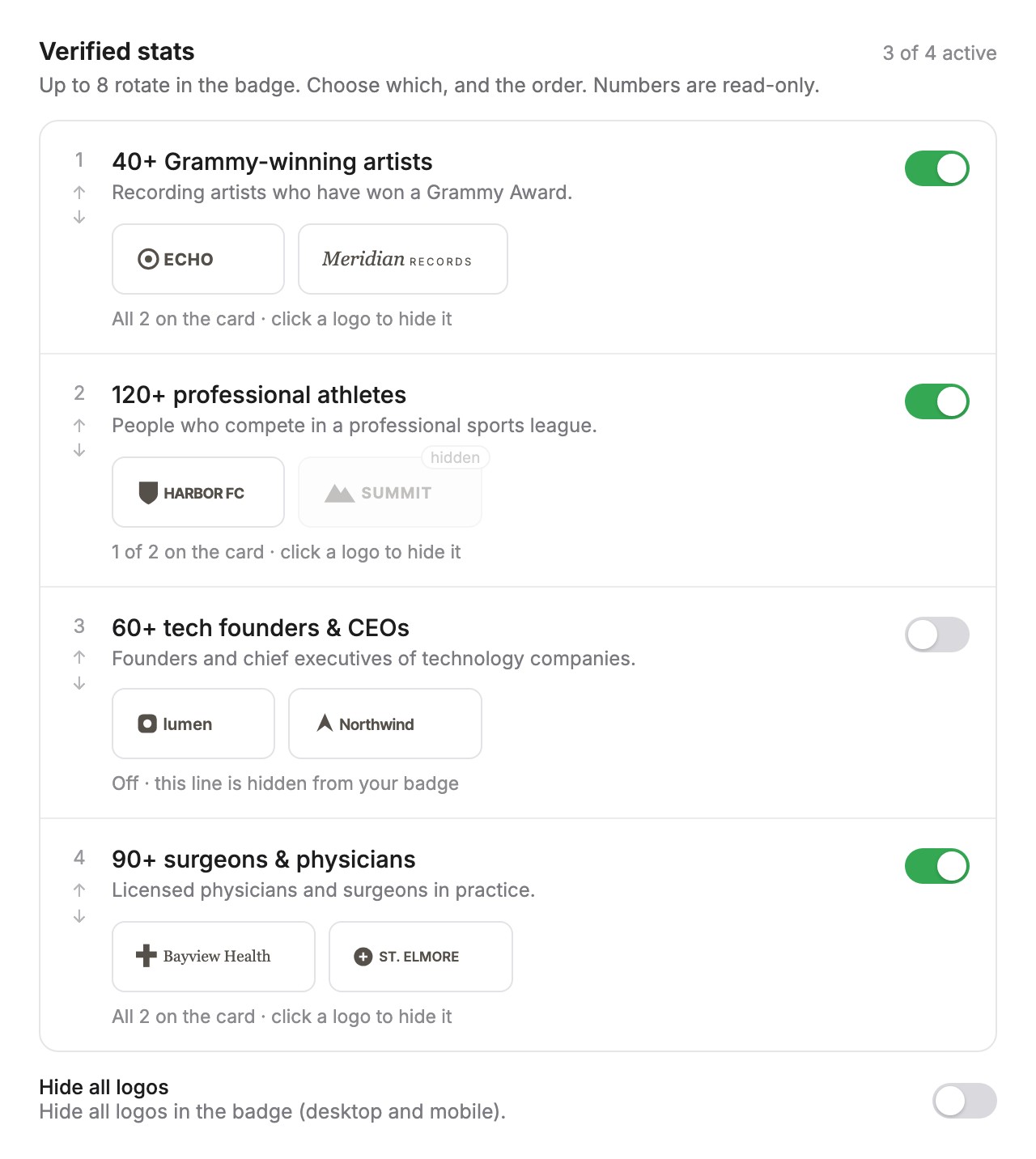
2. Review your lines. Under Verified stats, switch on the lines you want, and open "How we count this" to see what each one counts. Review every line and every employer logo before the line goes live, and hide any line or logo you do not want shown.
3. Pick a color. Keep "Match my site" or choose your own accent color. The save bar reads "Preview updated. Save to publish to your storefront." Click Save.
4. Click Install on Shopify. Under Install on your storefront, click Install on Shopify. This opens your theme editor with the badge ready to add.
5. Place the badge and save. Find "Verified social proof" in your Product information section; the button has already added it. Drag it to where you want the badge to sit on the page, and save the theme. Add the block once, since a second block shows the badge twice. Back on Settings > Badge, the page reads "Once the badge is on your product page, it'll confirm here automatically."
6. Turn it on. Back on Settings > Badge, switch on "Show to shoppers" and click Save. The badge stays off your storefront until you do.
If you're not on Shopify, reach out to your CSM to learn how to install.
How Verified by OuterSignal counts your buyers
Every count comes from your own customer data, and OuterSignal sets it. A line appears only once at least 20 of your buyers fit its group.
Counts show as N+, rounded down to the nearest ten from 100, and OuterSignal keeps recounting them. A published count only goes up.
While OuterSignal is still verifying buyers for a line, Settings > Badge marks it "Still counting", with the note "More buyers are still being verified; this number can go up." The count on your storefront can rise while that mark shows.
Choose which buyer groups and employer logos your visitors see
You decide what reaches your pages. On Settings > Badge you hide any line you do not want shown and set the accent color.
Each line can carry employer logos. Switch off any single logo you do not want, and that logo never reaches your storefront. We recommend reviewing every line and logo before the line goes live.
To take the badge off your storefront, switch off "Show to shoppers" and click Save. Nothing is removed: your settings and your installation stay as they are.
Measure the lift of Verified by OuterSignal with your own A/B test
Test the badge with your own A/B testing platform to measure lift on your site traffic: run the page with the line against the page without it. OuterSignal does not run that test.
Where Verified by OuterSignal works
Verified by OuterSignal goes on product pages and landing pages. On Shopify with an Online Store 2.0 theme, you add the badge as the "Verified social proof" app block in the theme editor. It is included in your plan at no extra charge.
If your theme is not an Online Store 2.0 theme, reach out to your Customer Success Manager or email support@outersignal.com. If you're not on Shopify, reach out to your CSM to learn how to install.
Questions about showing site visitors who buys from you
Where do the counts come from?
From your own customer data. OuterSignal sets every count, and you choose which lines show.
How many buyers does a line need?
At least 20. Counts show as N+, rounded down to the nearest ten from 100.
How often do counts update?
OuterSignal keeps recounting them, and a published count only goes up.
Does Verified by OuterSignal name my buyers?
No. The line and the card show groups, counts, and employer logos, and never a buyer's name.
Can I hide a line or an employer logo?
Yes. Hide any line or logo you do not want shown on Settings > Badge, and it never reaches your storefront.
Does Verified by OuterSignal slow my page down?
No. The script loads async.
What does Verified by OuterSignal cost?
It is included in your plan at no extra charge.
Can I measure whether it lifts conversion?
Yes, with your own A/B testing platform. OuterSignal does not run that test.
How do I install it without Shopify?
Reach out to your CSM to learn how to install.
